Find the answer, make the edit, and move on with task-first guidance for installing Editly, preparing a safe client handover, and resolving unsupported content.
Choose a task or search in plain language. Every answer keeps a shareable URL.
Start Here
Editly is a focused Elementor content editor for wp-admin. Start with the task you need to complete—there is no required reading order.
Editly handlesSupported Elementor text fields, role access, and optional text growth limits.
Your builder handlesStructure, spacing, styles, responsive settings, and design decisions.
Recommended path: start with Free if the editable copy lives in supported controls inside native Elementor widgets. Move to Pro when the site depends on third-party add-on widgets, you need branding, or you need an audit trail.
Editly 1.0.0 requires WordPress 6.0 or newer, PHP 7.4 or newer, and Elementor 3.0 or newer. Elementor must be installed and active; otherwise Editly stays inactive and shows an administrator notice.
Install Free
Install Editly for Elementor from WordPress.org or upload the Free zip.
Activate the plugin in Plugins.
Open Editly in wp-admin.
Install Pro
Download the Editly Pro ZIP from your Freemius purchase email or the Customer Portal.
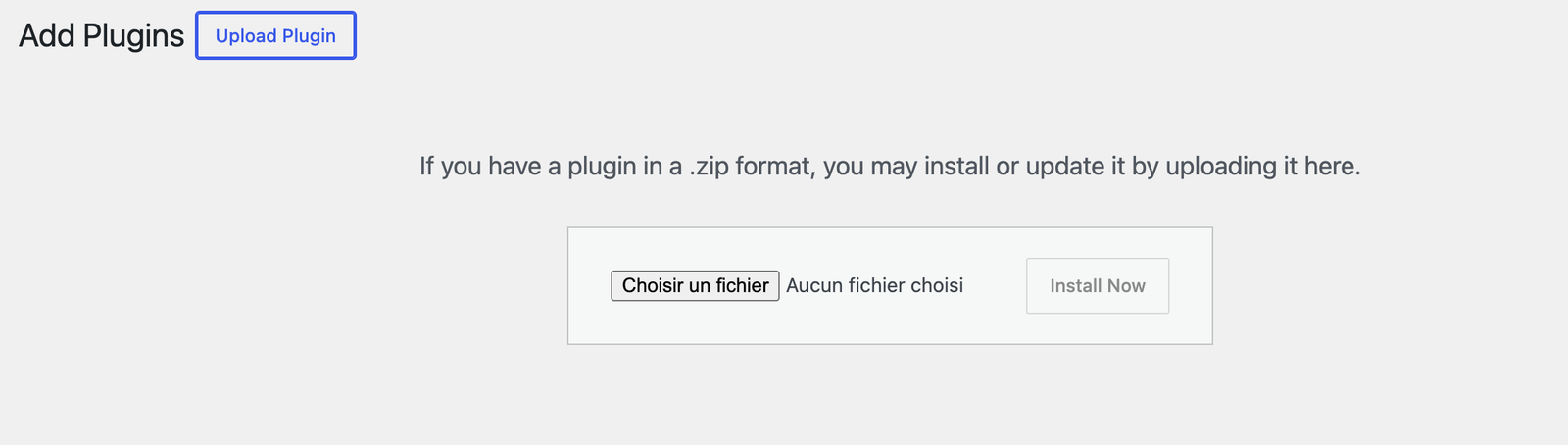
In WordPress, open Plugins → Add New → Upload Plugin, select the ZIP, and install it.
Activate Editly Pro as an administrator.
Enter and activate your license in the Freemius licensing screen in wp-admin.
Open Editly and select an Elementor page.
Already purchased? Use the Freemius Customer Portal to download the ZIP, retrieve the license, view invoices, or manage the subscription.
Pro is a standalone package, not a Free add-on. When Pro is activated, it deactivates Free so the two editions do not run in parallel. Once you have confirmed that Pro is working, you can remove the inactive Free plugin.
Install a zip from WordPress when deploying the Free or Pro package manually.
Elementor Pro note: Free can edit native Elementor Pro widgets when Elementor Pro is installed. That is different from third-party add-on widgets, which remain outside Free scope.
If the Editly menu does not appear: confirm Elementor is active and confirm you are logged in with an administrator account during the initial setup.
Editly ships with English source strings and complete interface packs for German, Spanish, French, Italian, Dutch, Polish, Brazilian Portuguese, and European Portuguese. Both PHP screens and JavaScript interactions are localized.
WordPress loads the matching Editly interface from the active site or user language.
The same language coverage is included in Free and Pro.
The package also includes the standard WordPress translation template (POT), so an agency or translator can create a missing locale using the normal WordPress translation workflow.
White label in Pro changes the Editly menu name, header baseline, logo, and accent color; it does not translate client content or unsupported third-party screens.
Deployment value: agencies can standardize one handover workflow across multilingual client portfolios without shipping a separate Editly build per locale.
Free and Pro do not use the same delivery model. Free follows the standard WordPress.org plugin workflow. Pro uses a commercial licensing and update flow through Freemius.
Free
No paid license is required.
Distribution and updates follow the normal WordPress.org path for the Free package.
Pro
Editly Pro requires a valid paid license, or an active trial where one has been issued.
Licensing, billing, private updates, downloads, and subscription management run through Freemius.
Reading content and working with existing drafts remain available when a license is inactive.
New content and White Label changes cannot be saved through Editly until the local site license is reactivated.
Existing Elementor content is preserved; deactivation does not delete page content or current Editly drafts.
Agency-managed site: if Editly reports an inactive site license, contact the agency that manages the website. Current edits remain visible in the editor, but new Editly saves require license reactivation.
Delivery model: Editly Pro is delivered as a standalone WordPress plugin ZIP. The package uses private Freemius updates; it is not distributed through WordPress.org.
PurposeMove from native-only scope to broader workflow control
What Pro handlesFree replacement and settings continuity
Verify after upgradeScope, tabs, license, critical pages
Pro is a complete, independent package. It replaces the Free runtime rather than extending it, so a site has one clear Editly editor and settings surface at a time.
Recommended upgrade sequence
Back up the site as you would for any plugin change on a live install.
Install and activate the Pro package as an administrator.
Confirm that Free is inactive; Pro deactivates it to avoid two editions running together.
Open Editly → Settings and verify the new tabs and settings are present.
Remove the inactive Free plugin once the Pro workflow has been checked.
What to verify after upgrading
Your allowed roles and edit-limit settings are still correct.
Third-party widget pages now expose the expected editable content where supported.
Audit Log and Branding tabs are visible to administrators.
Licensing and updates are connected if you expect paid update delivery.
Important: upgrading to Pro broadens supported widget coverage, but it should not be documented as a guarantee that every custom widget or every custom control on every add-on will be editable.
Also supportsCompatible Elementor Pro controls when installed
Does not editThird-party add-on widgets in Free
This is the most important scope rule in the product. Free edits supported text, textarea, WYSIWYG, and number controls exposed by native Elementor and Elementor Pro widgets. Free does not edit third-party Elementor add-on widgets.
Widget source
Free behavior
What the user sees
Elementor native widgets
Supported controls are editable
Fields appear in the editor normally
Elementor Pro native widgets
Supported controls are editable when Elementor Pro is installed
Fields appear in the editor normally
Third-party add-on widgets
Not editable in Free
Diagnostic messaging explains the boundary
What happens on mixed pages
If a page includes native widgets and third-party widgets, Free still exposes the editable native fields.
If a page contains only third-party add-on widgets, Free can show an empty-state explanation instead of editable fields.
The diagnostic message is there to make the boundary explicit, not to imply that Free can edit those third-party widgets.
Exact product boundary: Free edits supported control types inside native Elementor and Elementor Pro widgets only. Dynamic sources and controls without a stored scalar value may not surface as editable fields.
Free is enough when: your site mainly uses native Elementor widgets and your goal is safe content editing, not broader add-on coverage, audit history, or branding controls.
Core promiseContent edits without routine builder access
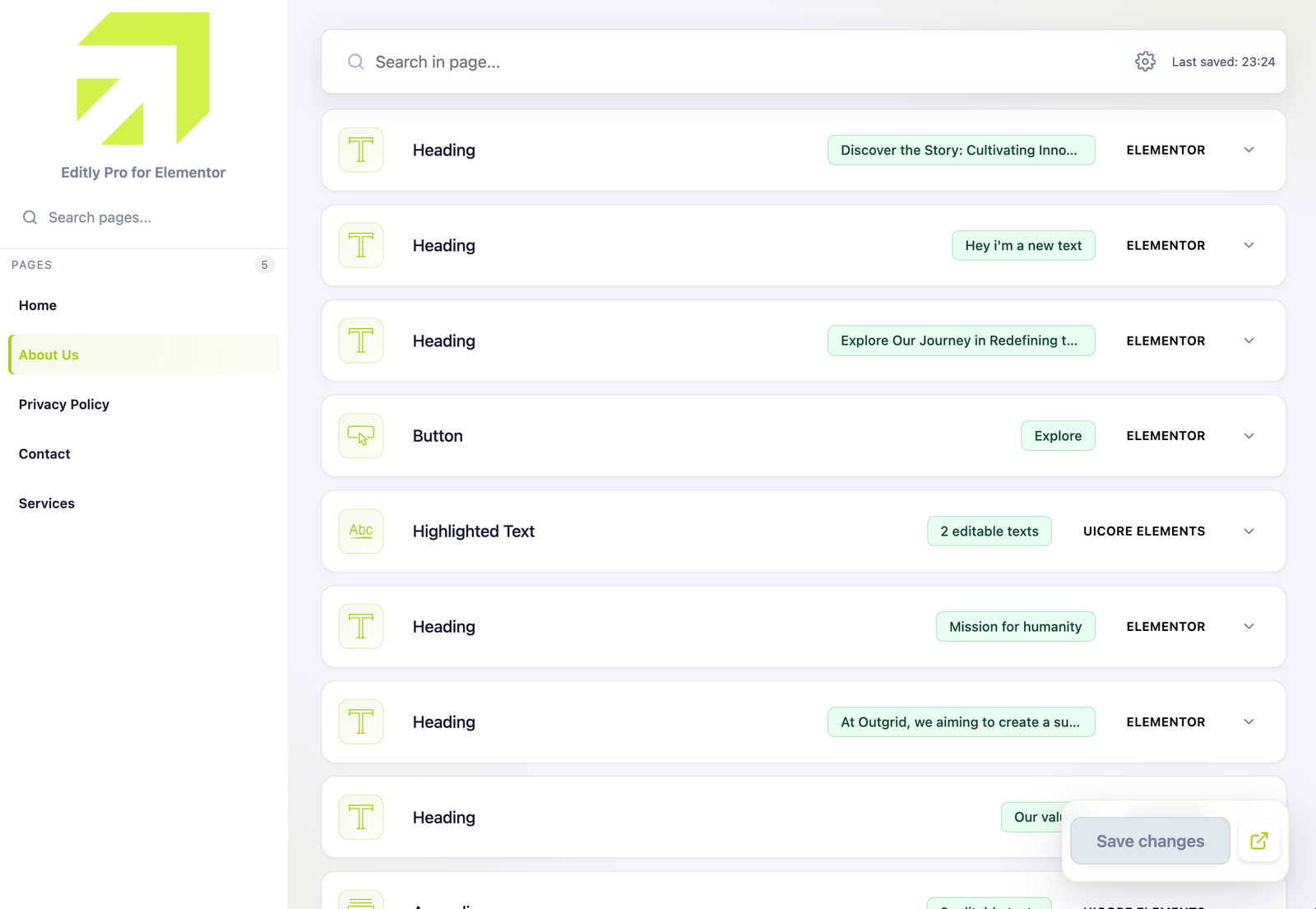
The editing workflow is intentionally simple: choose an Elementor page in draft, private, or published status, edit supported content fields, save, then review important front-end pages when the change matters.
Typical workflow
Open Editly in wp-admin.
Choose the draft, private, or published page you want to edit.
Use the search field to locate the relevant text quickly when needed.
Edit the supported fields shown in the interface.
Save the changes and review the front-end result for high-visibility pages.
How fields adapt to the content
Plain text: when Editly detects an editable text value, it presents the appropriate text field or textarea. The user updates the copy from wp-admin without opening Elementor.
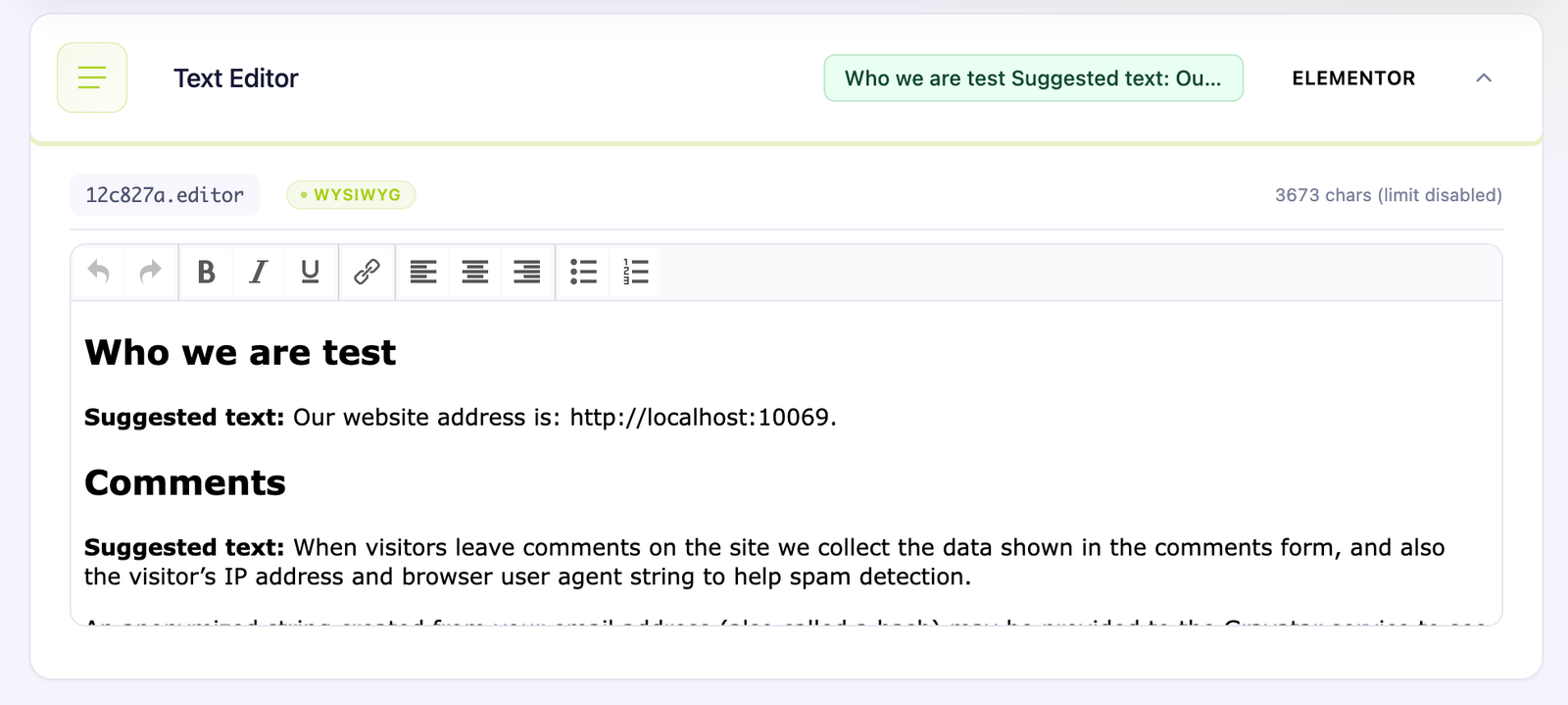
Rich content: when a detected editable field contains compatible HTML or rich text, Editly can use a focused TinyMCE editor. This keeps supported formatting work in Editly rather than sending the user back into the builder.
Save related edits together
You can update several fields—and several supported widgets on the same page—before using the global save button once. Editly collects those pending changes into one save operation, so a small page update does not become a sequence of individual saves.
Supported rich-text content stays editable in a focused wp-admin field instead of the Elementor builder.
Operational rule: Editly is best for routine content autonomy. Keep structural design changes, layout work, and component decisions inside your builder workflow and internal team process.
IncludesDraft, private, and published Elementor pages
Helps withFast page selection
Large sitesPro adds indexed listing improvements
Editly has two separate search levels: one to find the page you need, then one to find the editable content inside that page. This keeps a large site navigable without mixing page discovery and field discovery into one control.
Search for a page
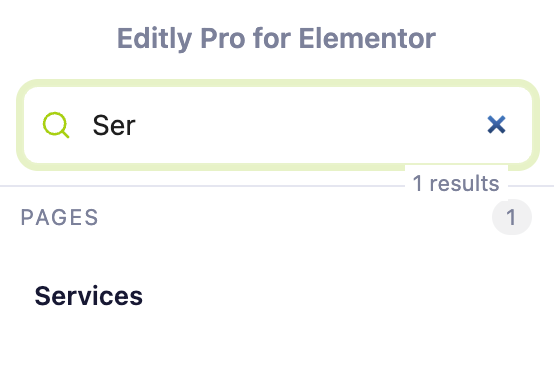
The sidebar search narrows the list of draft, private, and published Elementor pages before you open one. Long result sets load progressively with Load more pages.
Draft, private, and published pages appear when Elementor data or Elementor builder mode is detected; editable fields are resolved only after a page is opened.
Sidebar search reduces friction for operators working across many pages.
Progressive loading keeps the list responsive instead of dumping every page at once.
If a page does not appear: check that it is built with Elementor, that your WordPress role can edit it, and that it contains supported editable text controls for the current edition.
Search narrows the page list before the operator opens the exact page they need to update.
Search inside an open page
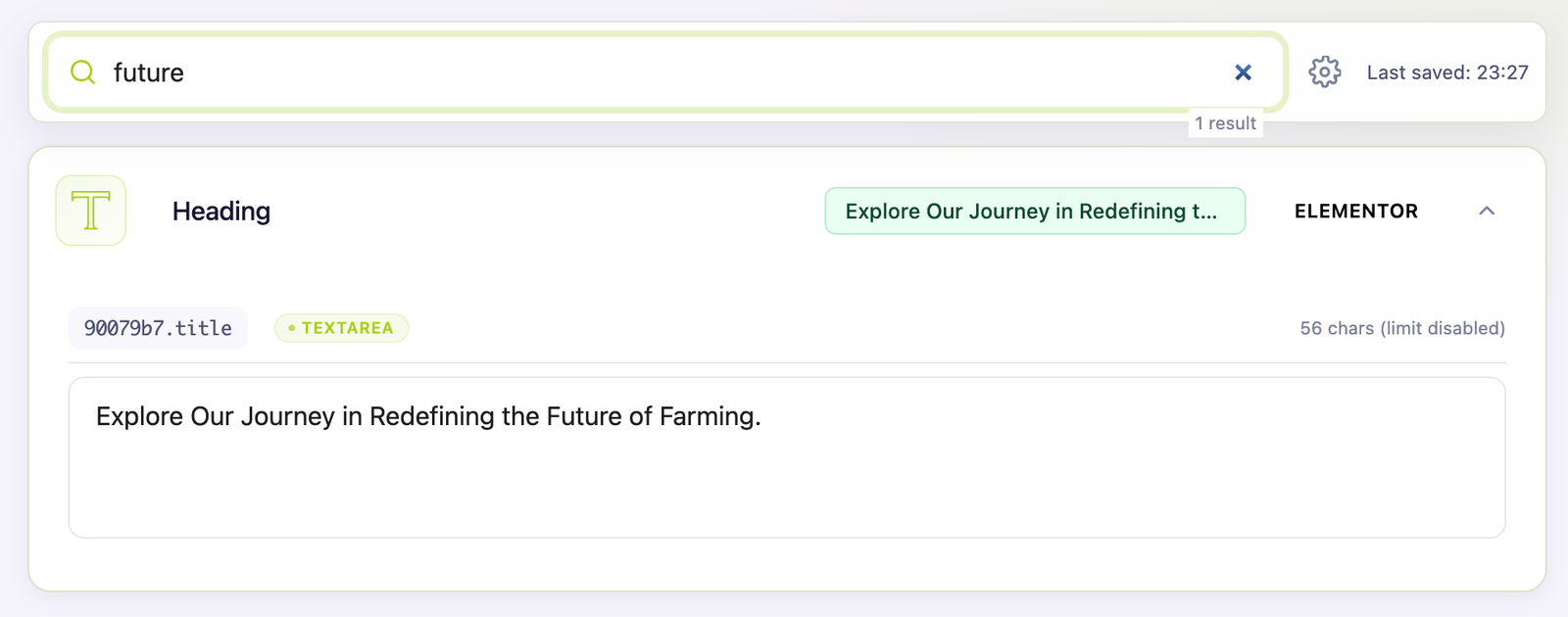
Once a page is loaded, the search bar at the top filters its editable blocks by text or widget context and opens the first matching result. If nothing matches, Editly shows an explicit empty state instead of leaving the operator to scan the whole page manually.
In-page search reaches the intended editable field without opening Elementor or scanning a long page manually.
Free and Pro: both editions can search the page list. Pro adds a persistent database index designed to keep repeated listing and navigation work more responsive on larger Elementor sites.
Edit limits help keep the editing workflow aligned with layout safety. They exist to prevent small content autonomy from quietly turning into UI breakage.
What the setting does
Limits how much a field can grow relative to its original size.
Helps keep short UI elements such as buttons, badges, and compact headings within sensible bounds.
Supports a safer handover when clients and operators should update copy, not redesign components through text growth.
Practical rule: a CTA label should remain a CTA label. If a message needs more space, move it into a body-text field or redesign the component intentionally in the builder.
Growth limits are most useful on compact UI elements where long replacement copy can create visible design stress.
Best-practice checklist
Keep compact UI copy short and specific.
Review campaign-critical pages after substantial copy changes.
Choose one site-wide growth percentage that fits the most constrained delegated workflow; the current setting is global, not per role.
Save reliability: Editly is built to fail safely when a page changed after the editor was loaded. If the underlying content is newer than the version you opened, Editly returns a conflict state instead of silently overwriting fresher text. Reload, review, and save again.
Main access controlAllowed roles + optional builder restriction
Settings accessAdministrators only
AvailabilityFree + Pro, disabled by default
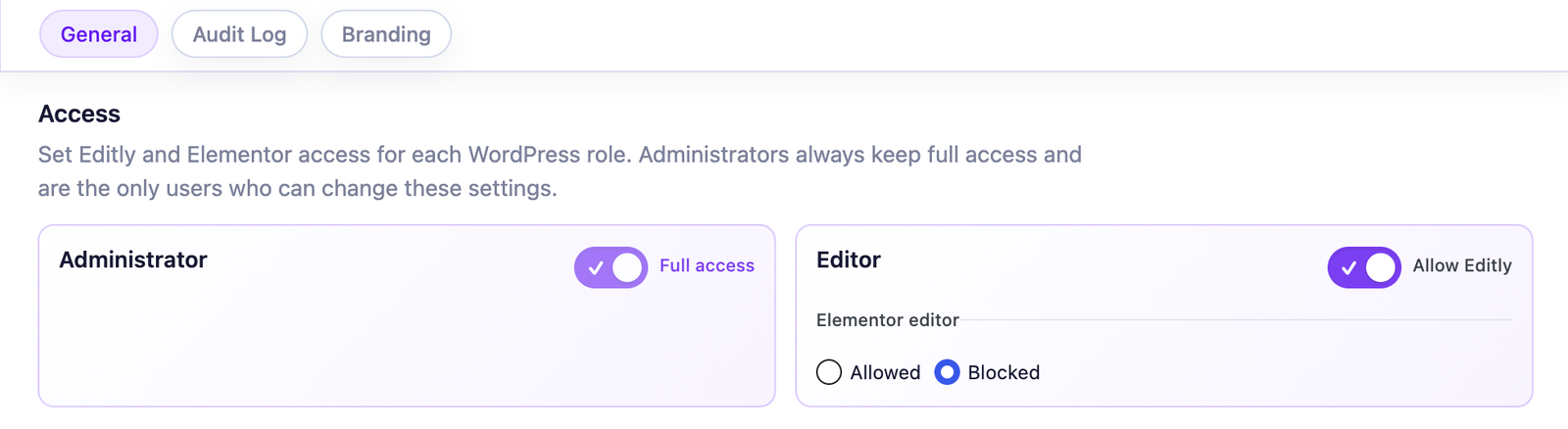
Editly access is role-based, but settings are intentionally more restricted. An administrator chooses which WordPress or custom roles can use Editly and can optionally make Editly the only Elementor content editor available to those selected non-administrator roles.
Not a global Elementor shutdown: selected client roles continue editing supported content through Editly. Administrators always retain the full Elementor editor.
Recommended setups
Agency handover: dedicated client content user with Editly access, but without builder access.
Freelance delivery: owner/admin keeps full control; day-to-day copy edits go through a scoped content role.
SEO/content team: operational edit access without full design permissions.
Configure Elementor editor access
Open Editly → Settings → General as an administrator.
Under Access, select the WordPress roles that should use Editly.
Under Elementor editor access, enable Use Editly as their only Elementor editor.
Save, then test with an account assigned to one of the selected non-admin roles.
Exact behavior
The selected non-admin roles keep Editly access but cannot open the full Elementor editor.
Elementor editor buttons and direct editor access are blocked through Elementor’s native role-access mechanism.
Administrators are never restricted, including accounts that also have another WordPress role.
Existing restrictions saved in Elementor Role Manager are preserved.
The rule follows WordPress roles. Assign distinct roles when two users need different access.
Disabling the option, deactivating Editly, or uninstalling Editly removes only Editly’s dynamic restriction.
Underlying mechanism: Editly does not overwrite Elementor’s stored role configuration. For Elementor’s own access model, see the Elementor Role Manager documentation.
Role
Editly access
Elementor editor when enabled
Settings access
Typical use
Administrator
Yes
Full access
Yes
Owner, lead developer, operations lead
Editor / SEO Manager
Optional
Blocked when role is selected
No
Content operations
Author / Contributor
Usually no
Follows Elementor unless selected in Editly
No
Keep scope tight by default
Select the roles that use Editly, then keep the full Elementor editor unavailable to the selected non-admin roles.
Common questions
Can my client still edit Elementor content? Yes. They edit supported content through Editly; only their access to the full Elementor builder is restricted.
Can administrators still use Elementor? Yes. Editly never applies this restriction to administrators.
Does Editly replace Elementor Role Manager settings? No. Editly adds its rule dynamically and preserves Elementor’s stored configuration.
Can I restrict one Editor but not another? The setting follows WordPress roles. Assign separate roles when users need different access levels.
What Pro addsBroader widget coverage without reopening the builder
Best forSites using mixed Elementor add-on ecosystems
Still importantValidate critical custom widgets
Free uses a deterministic contract for native Elementor and Elementor Pro widgets: it inspects the complete registered control tree and exposes only editorial values whose behavior and storage are predictable. Pro adds a fundamentally different universal engine. It recursively scans stored scalar values, maps them to the rendered DOM of the same widget and, when a value is ambiguous, verifies that changing that value would actually change visible text. The field can therefore be discovered even when Editly does not know its widget, control type or name.
What Pro does well here
Uses one universal discovery layer rather than an allowlist or a separate integration for every widget pack.
Keeps one editing workflow across Elementor, third-party add-ons, theme-provided widgets, and compatible custom widgets.
Reduces the need to send every add-on widget copy change back into the builder.
Makes Editly more viable for agencies that do not control every add-on used across client sites, without requiring manual widget-by-widget setup.
Accuracy rule: the engine deliberately excludes empty, structural, hidden and non-text values, content without a deterministic Elementor storage path, and markup that cannot be updated safely. This is broad compatibility by architecture, not a promise that every arbitrary PHP, JavaScript or dynamic structure is editable. Highly custom output and critical templates still deserve validation before handover.
Typical upgrade trigger: you open a page in Free, see third-party widget diagnostics, and need those add-on sections to follow the same client-safe editing workflow without sending people back into Elementor.
These are non-exhaustive examples. Free remains focused on native Elementor and Elementor Pro widgets; Pro is the route when client-editable text lives in third-party add-on stacks and broader theme environments.
PurposeBrand the editing experience for each client
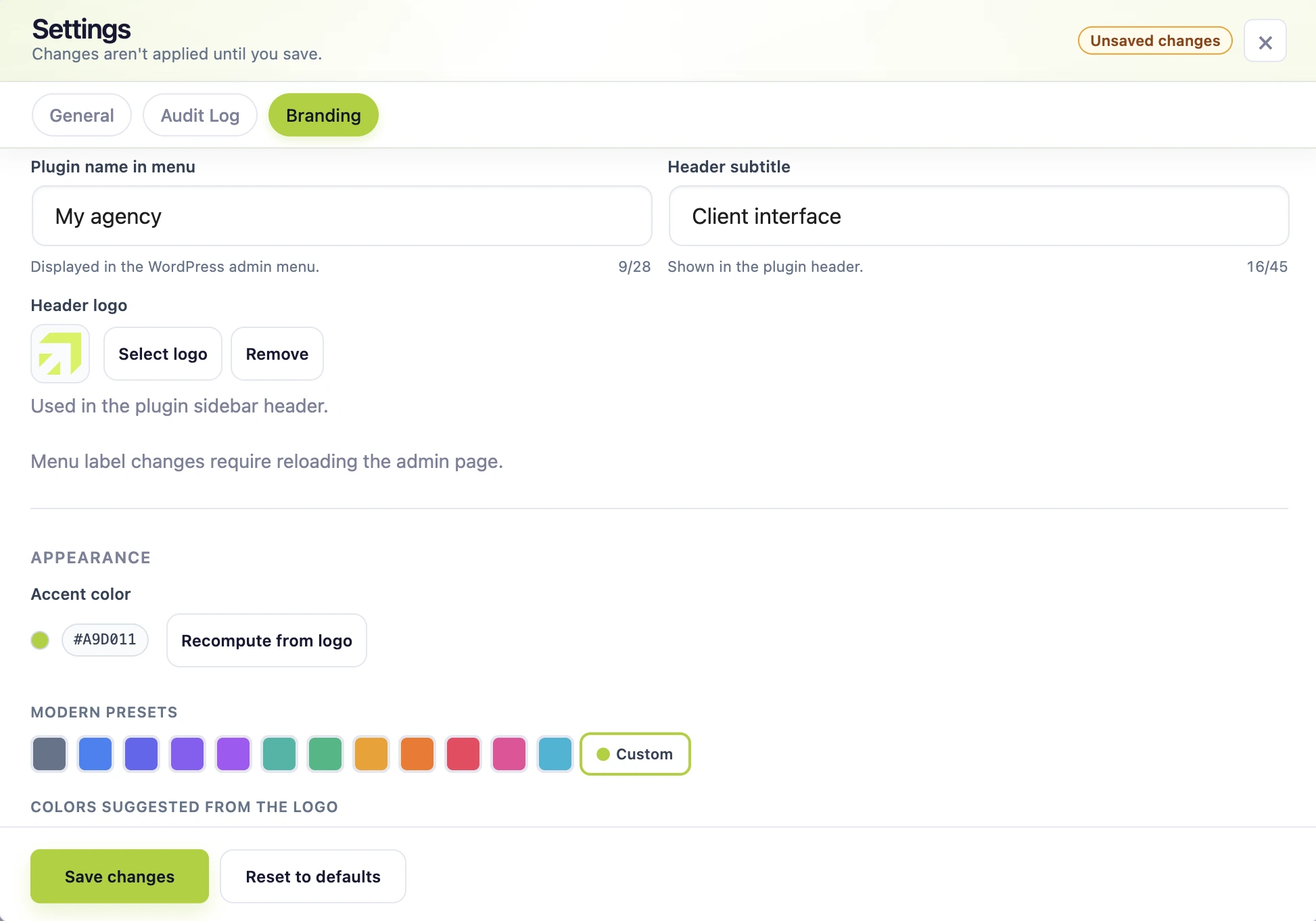
Branding in Pro helps agencies present a cleaner handover experience inside Editly. In a few settings, you can turn the editing surface into a persistent part of your agency delivery: recognisable for the client, consistent across the team, and separate from the generic WordPress administration feel.
Branding controls in Pro
Enable White Label
Plugin name in menu
Header baseline
Header logo
Primary accent color with a suggested brand direction and derived hover, contrast, focus, tint, and border tokens
Set the menu name, subtitle, logo, and accent once. Editly persists the choice and applies the resulting palette across the editing interface, so each client sees a coherent agency-branded workflow without manual styling work.
Boundary to document clearly: this brands the Editly menu and Editly interface. It does not rename the plugin on the WordPress Plugins screen, rebrand all wp-admin or Elementor screens, or expose a second custom accent color in this build.
Practical note: when you change the menu label, a page reload may be needed before the new menu label is reflected consistently in the admin UI.
Configure: set the menu name, client-facing subtitle, logo, and accent direction from one focused Branding panel.Result: a branded editing workspace can match the agency delivery environment the client already knows.
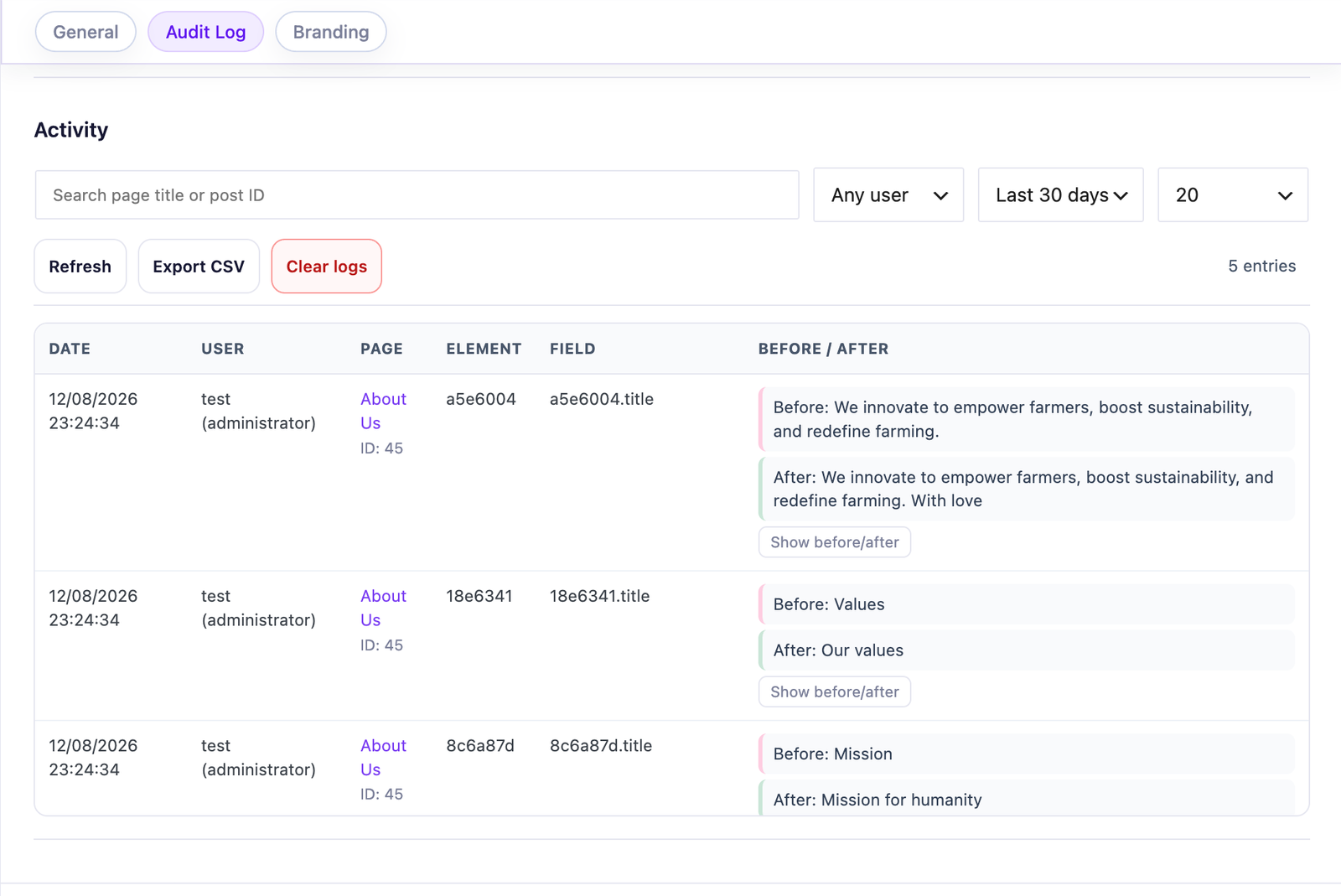
Audit Log is the accountability layer in Pro. It records content edits so teams can keep a complete local history of what changed, on which page, by which user, and when.
What administrators can do
Enable or disable audit logging.
Filter entries by search term, user, and date range.
Review paginated log history.
Export entries with Export CSV.
Purge entries with Clear logs.
Configure retention by days and maximum rows; defaults are 90 days and 5,000 entries.
What the log is for: operational clarity. It is especially useful when several people can edit client copy and someone later asks, “who changed this CTA?”
Data behavior: audit logging is disabled by default. When enabled, entries are stored locally in the WordPress database. Before/after values are normalized excerpts capped at 280 characters, not full content snapshots. Value 0 disables the corresponding retention limit.
The audit log turns routine edits into reviewable history, which is especially useful when multiple people can update client content.
Why it existsKeep the page list usable on larger installs
EditionPro
User benefitSmoother repeated listing and search
On larger installs, Pro maintains a persistent page index in the WordPress database for the page list. It improves repeated listing and navigation work instead of relying only on heavier live page lookups.
Page selection stays more responsive when the site has a larger content inventory.
Progressive loading still matters, but indexed listing makes repeated operations more predictable.
This is primarily an operator productivity improvement, not a marketing-only feature bullet.
When it matters most: agencies or operators managing larger site portfolios, content-heavy installs, or workflows where people search through many Elementor-built pages regularly.
FreeLocal data, no external telemetry in the package
ProLocal audit data + Freemius licensing workflows
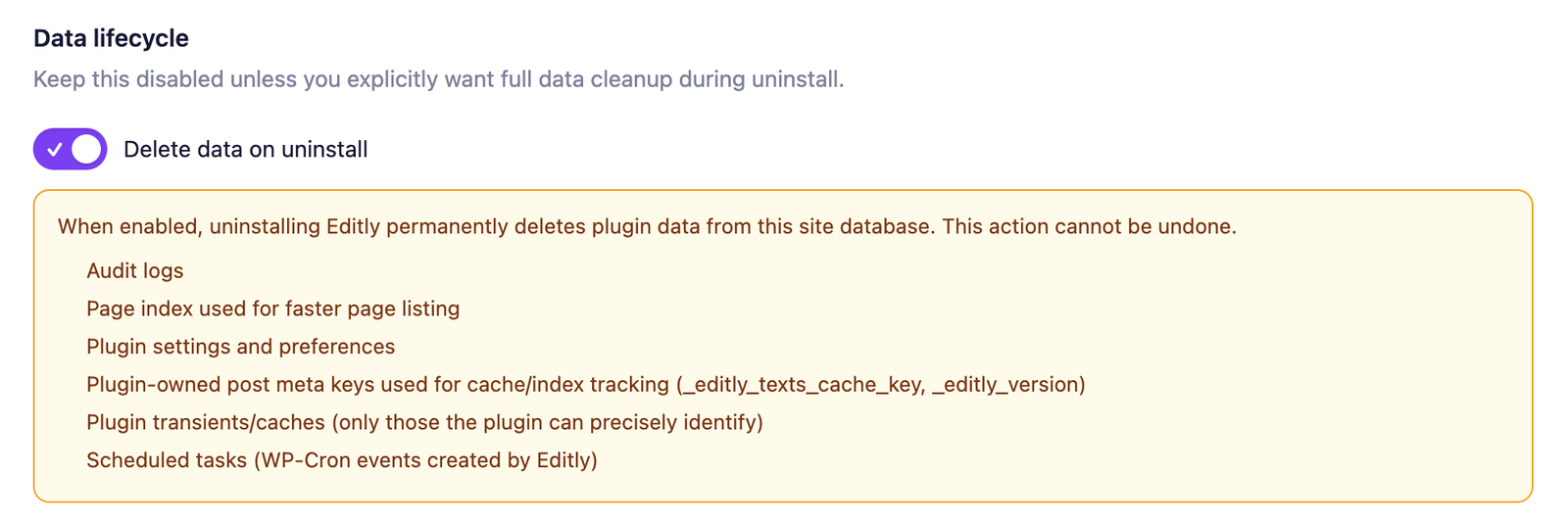
Admin controlDelete data on uninstall in Pro
Data handling should be documented plainly because it affects trust. Free and Pro are close in purpose, but not identical in what they store or which external licensing workflow they use.
Area
Free
Pro
Edited content and settings
Stored in the local WordPress database
Stored in the local WordPress database
Audit history
Not available
Stored locally when Audit Log is enabled
External service dependency
No external telemetry service in this package
Freemius may connect when licensing and update workflows are used
Default uninstall behavior
Keeps persistent Editly data by default
Admin controls Delete data on uninstall
Administrators can explicitly choose whether Pro data is removed during uninstall.
Important documentation points
Free keeps persistent settings and content references by default on uninstall. Runtime caches and scheduled hooks are still removed.
Pro exposes a data-lifecycle control through Delete data on uninstall. Confirm its saved value before removing the plugin from a production site.
Audit Log retention in Pro is configurable by days and maximum rows.
Freemius should be documented accurately as a licensing/update workflow dependency, not as generic product telemetry language.
Likely cause: the page is not built with Elementor, or it does not expose supported editable content for the current edition. Fix: confirm the page is Elementor-built and test a known compatible page for comparison.
No editable widgets found
Likely cause: the page may contain no supported text controls, or the relevant content lives inside unsupported widget sources for the edition you are using. Fix: confirm widget source and compare the page against the documented scope.
This page only contains third-party widgets
Likely cause: you are using Free on a page built entirely with third-party Elementor add-on widgets. Fix: move the workflow to Pro if those sections must be editable through Editly, or handle those edits through your builder workflow instead.
Changes are not visible on the front end
Likely cause: caching at plugin, server, or CDN level. Fix: clear all cache layers and hard-refresh the page before assuming the save failed.
Settings are missing
Likely cause: the current user can access the editor but is not an administrator. Fix: sign in with an administrator account to manage settings. Non-admin roles are intentionally excluded from configuration access.
Audit Log tab is missing or empty
Likely cause: you are not on Pro, you are not an administrator, or audit logging is disabled. Fix: confirm the edition, confirm admin access, and verify Audit Log is enabled in Editly → Settings → Audit Log.
Third-party widget not detected in Pro
Likely cause: the widget uses unsupported or heavily custom control structures. Fix: isolate the widget on a simple test page and contact support with the widget name, page URL, and the exact field you expected to edit.
Support checklist: include whether this is Free or Pro, the widget name, the page URL, what text you expected to edit, and whether the issue reproduces on a clean test page.
Try keywords like scope, audit log, white label, or uninstall.
Privacy
Cookies
By default, the site uses only necessary cookies and storage. With your permission, it can also remember preferences and measure audience activity with Google Analytics. Learn more.
Your Global Privacy Control signal was detected: optional storage remains disabled unless you explicitly choose otherwise.
Privacy
Manage my preferences
You can change or withdraw your permission at any time. Necessary cookies remain active to remember your choice and secure the service.
Necessary
Remember your privacy choice and enable essential functions.
Personalization
Remembers local preferences and adapts the experience to site usage.
Audience analytics
Allows Google Analytics only after your permission. Advertising use remains disabled.