How to restrict Elementor builder access by WordPress role
Editly can be the only Elementor content editor available to selected non-administrator roles, while administrators retain the full builder. This guide covers the exact setup, behavior, and limits.
The core principle: separate content ownership from design ownership
Clients should own day-to-day content updates. Agencies should own structural and visual integrity. Once this separation is explicit, most access questions become straightforward.
Editly can now enforce that workflow more directly in both Free and Pro. The optional setting is disabled by default: selected non-administrator roles keep editing supported content through Editly but lose access to the full Elementor editor.
A role model that works in real delivery
Agency admin role
Owns structure, style systems, component logic, and escalation decisions.
Client content role
Owns copy updates in supported Editly fields. When the option is enabled for that role, Elementor’s full editor is no longer an available route.
Optional SEO/editor role
Handles iteration for headings and CTA copy within safe field boundaries.
Use WordPress roles as starting points, not the final design
Administrator: reserve for people accountable for site configuration, plugins, users, and recovery—not routine client updates.
Editor: useful for an internal content lead, but often broader than necessary for a client who only changes a few Elementor fields.
Author: suited to publishing a person’s own posts; it rarely maps cleanly to a brochure-site editing workflow.
Custom role: the practical option when two people need different access patterns. Define it around the job they actually perform, then test it on a real page.
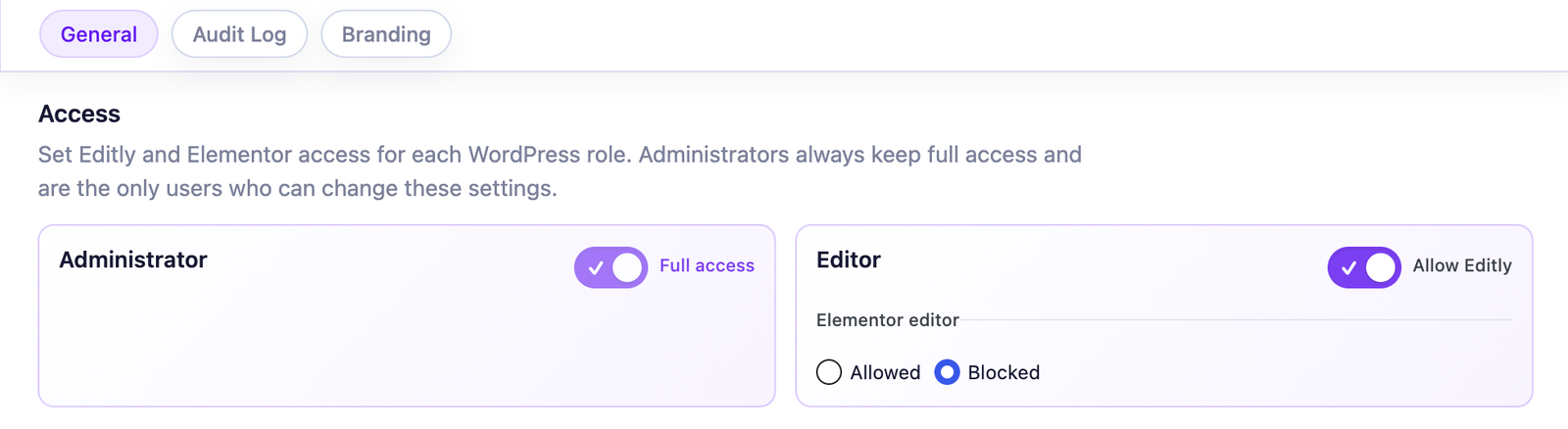
Role-based control: selected client roles can use Editly while administrators retain Elementor.
Open Editly → Settings → General as an administrator.
Under Access, select the client or content roles that should use Editly.
Enable Use Editly as their only Elementor editor.
Save and verify the experience with a test account assigned to the selected role.
The setting follows WordPress roles, not individual accounts. If two Editors need different access, create or assign distinct roles before enabling the restriction.
After saving, test both directions: sign in as the selected client role and confirm Elementor entry points are unavailable; then return as an administrator and confirm the full editor still opens.
What changes — and what stays intact
Access behaviour to verify
Selected non-admin roles can use Editly but cannot open the full Elementor editor.
Elementor’s editor buttons and direct editor route are blocked through its native role-access mechanism.
Administrators always retain full Elementor access, including accounts with more than one role.
Restrictions already configured in Elementor Role Manager remain intact.
Disabling the option or removing Editly removes only Editly’s dynamic rule.
This is a workflow boundary, not a security firewall. It reduces accidental structural changes by removing the builder from the selected roles’ normal path.
The role-based Elementor editor restriction itself is included in both Free and Pro. Pro becomes relevant when the same workflow also needs broader widget coverage, branding, or accountability.
If your agency handles multiple contributors, client portfolios, and diverse widget stacks, Pro adds operational controls that keep delivery coherent:
By default, the site uses only necessary cookies and storage. With your permission, it can also remember preferences and measure audience activity with Google Analytics. Learn more.
Your Global Privacy Control signal was detected: optional storage remains disabled unless you explicitly choose otherwise.
Privacy
Manage my preferences
You can change or withdraw your permission at any time. Necessary cookies remain active to remember your choice and secure the service.
Necessary
Remember your privacy choice and enable essential functions.
Personalization
Remembers local preferences and adapts the experience to site usage.
Audience analytics
Allows Google Analytics only after your permission. Advertising use remains disabled.